1. ButtonTest1
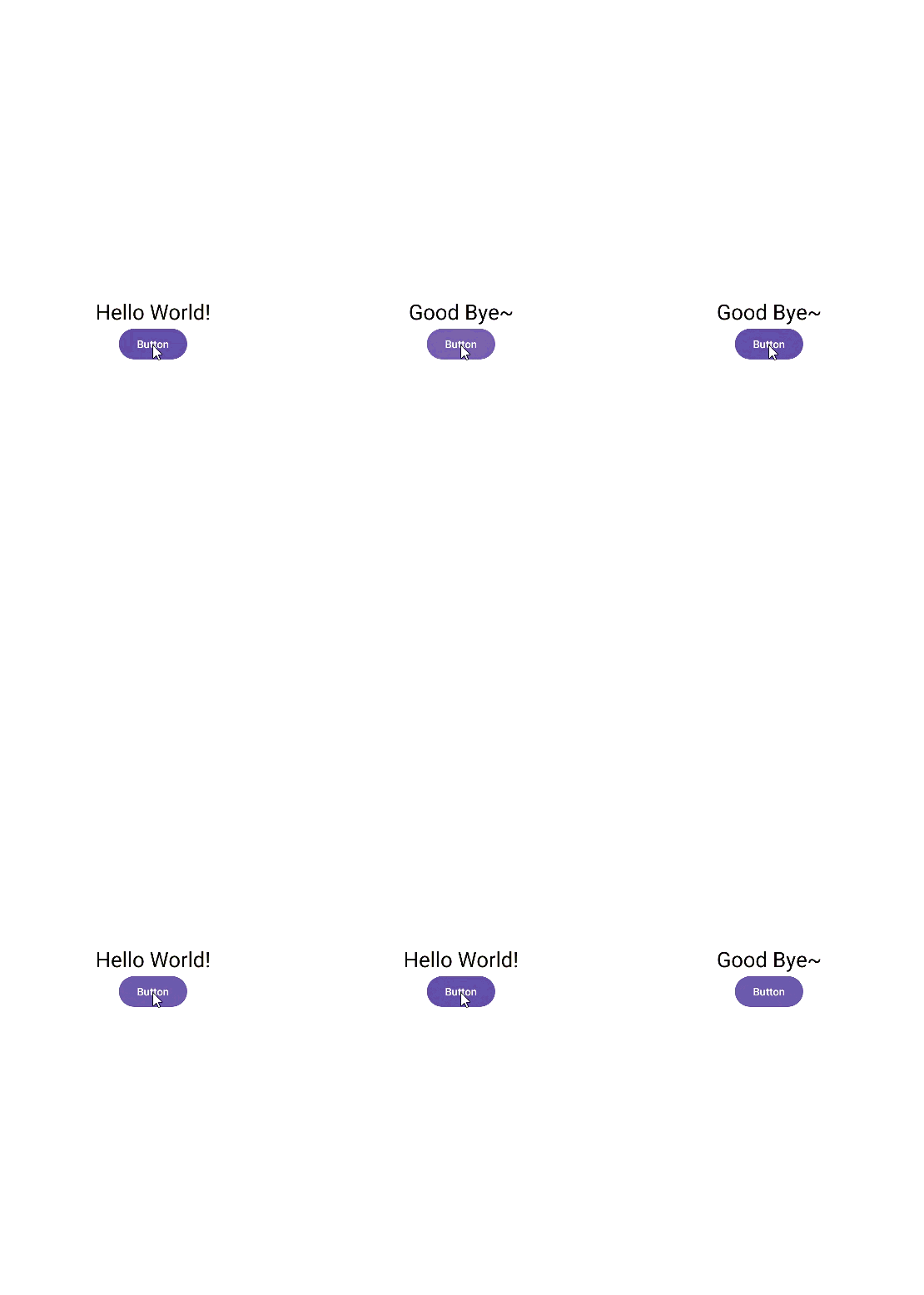
<setOnClickListener() > 를 활용해 다음과 같은 화면 만들어보기
▼결과화면
▼actuvity_main.xml 코드
<?xml version="1.0" encoding="utf-8"?>
<androidx.constraintlayout.widget.ConstraintLayout xmlns:android="http://schemas.android.com/apk/res/android"
    xmlns:app="http://schemas.android.com/apk/res-auto"
    xmlns:tools="http://schemas.android.com/tools"
    android:id="@+id/main"
    android:layout_width="match_parent"
    android:layout_height="match_parent"
    tools:context=".MainActivity">

    <LinearLayout
        android:layout_width="match_parent"
        android:layout_height="match_parent"
        android:orientation="vertical"
        android:gravity="center">

        <TextView
            android:id="@+id/textView"
            android:layout_width="wrap_content"
            android:layout_height="wrap_content"
            android:text="Hello World!"
            android:textColor="#000000"
            android:textSize="28sp" />

        <Button
            android:id="@+id/button"
            android:layout_width="wrap_content"
            android:layout_height="wrap_content"
            android:text="Button" />


    </LinearLayout>

</androidx.constraintlayout.widget.ConstraintLayout>
▼MainActivity.java 코드
package 본인것;

import android.os.Bundle;
import android.view.View;
import android.widget.Button;
import android.widget.TextView;

import androidx.activity.EdgeToEdge;
import androidx.appcompat.app.AppCompatActivity;
import androidx.core.graphics.Insets;
import androidx.core.view.ViewCompat;
import androidx.core.view.WindowInsetsCompat;

public class MainActivity extends AppCompatActivity {

    private TextView textView;

    @Override
    protected void onCreate(Bundle savedInstanceState) {
        super.onCreate(savedInstanceState);
        EdgeToEdge.enable(this);
        setContentView(R.layout.activity_main);

        textView = findViewById(R.id.textView);
        Button button = findViewById(R.id.button);

        button.setOnClickListener(new View.OnClickListener(){

            @Override // 부모 메소드 재정의
            public void onClick(View v) { // 클릭 이벤트 처리
                if (textView.getText().toString().equals("Good Bye~")) {
                    textView.setText("Hello World!");  // 원래 글자로 복귀
                } else {
                    textView.setText("Good Bye~");
                }
            }
        });
    }
}
2. ImageViewTest
<setOnClickListener() > 를 활용해 다음과 같은 화면 만들어보기
▼결과화면

▼actuvity_main.xml 코드
<?xml version="1.0" encoding="utf-8"?>
<androidx.constraintlayout.widget.ConstraintLayout xmlns:android="http://schemas.android.com/apk/res/android"
    xmlns:app="http://schemas.android.com/apk/res-auto"
    xmlns:tools="http://schemas.android.com/tools"
    android:id="@+id/main"
    android:layout_width="match_parent"
    android:layout_height="match_parent"
    tools:context=".MainActivity">

    <LinearLayout
        android:layout_width="match_parent"
        android:layout_height="match_parent"
        android:orientation="vertical"
        android:weightSum="10"
        >

        <TextView
            android:id="@+id/textView2"
            android:layout_width="match_parent"
            android:layout_height="wrap_content"
            android:text="MoMoLand"
            android:layout_weight="1"
            android:textColor="#FFC107"
            android:background="#FFEB3B"
            android:gravity="center"
            android:textSize="32sp"/>

        <ImageView
            android:id="@+id/imageView"
            android:layout_width="match_parent"
            android:layout_height="wrap_content"
            android:layout_weight="9"
            android:background="#0000FF"
            android:scaleType="centerCrop"
            app:srcCompat="@drawable/momoland" />
    </LinearLayout>

</androidx.constraintlayout.widget.ConstraintLayout>
3. LifeCycle (Layout 활용 + Button 메소드)
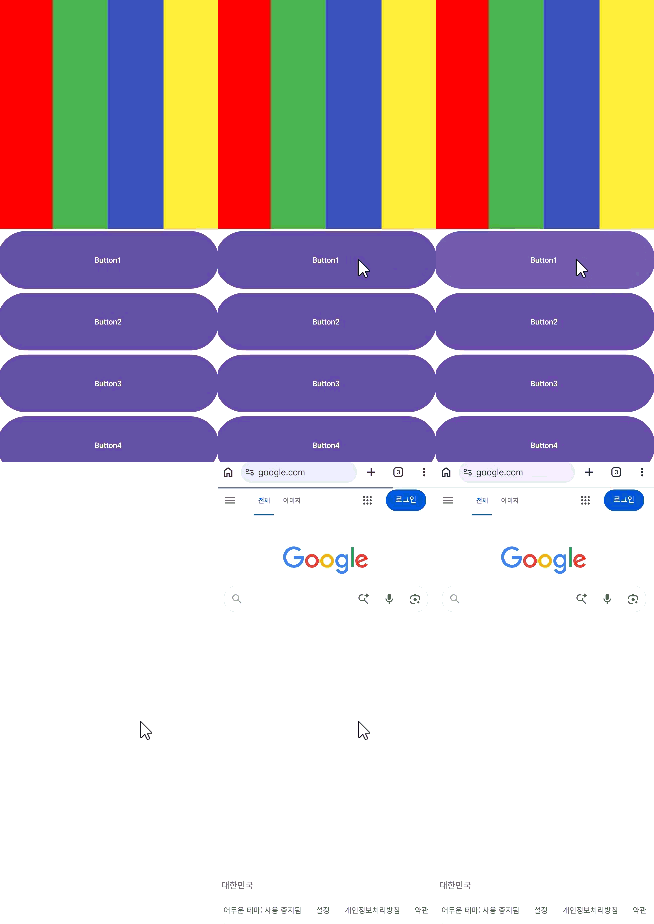
다양한 레이아웃과 <setOnClickListener() > 를 활용해 다음과 같은 화면 만들어보기
▼결과화면
▼actuvity_main.xml 코드
<?xml version="1.0" encoding="utf-8"?>
<androidx.constraintlayout.widget.ConstraintLayout
    xmlns:android="http://schemas.android.com/apk/res/android"
    xmlns:app="http://schemas.android.com/apk/res-auto"
    xmlns:tools="http://schemas.android.com/tools"

    android:id="@+id/main"
    android:layout_width="match_parent"
    android:layout_height="match_parent"
    tools:context=".MainActivity">

    <LinearLayout
        android:layout_width="match_parent"
        android:layout_height="match_parent"
        android:orientation="vertical">

        <LinearLayout
            android:layout_width="match_parent"
            android:layout_height="match_parent"
            android:layout_weight="1"
            android:orientation="horizontal">

            <LinearLayout
                android:layout_width="match_parent"
                android:layout_height="match_parent"
                android:layout_weight="1"
                android:background="#FF0000"
                android:orientation="horizontal"></LinearLayout>

            <LinearLayout
                android:layout_width="match_parent"
                android:layout_height="match_parent"
                android:layout_weight="1"
                android:background="#4CAF50"
                android:orientation="horizontal"></LinearLayout>

            <LinearLayout
                android:layout_width="match_parent"
                android:layout_height="match_parent"
                android:layout_weight="1"
                android:background="#3F51B5"
                android:orientation="horizontal" />

            <LinearLayout
                android:layout_width="match_parent"
                android:layout_height="match_parent"
                android:layout_weight="1"
                android:background="#FFEB3B"
                android:orientation="horizontal" />

        </LinearLayout>

        <LinearLayout
            android:layout_width="match_parent"
            android:layout_height="match_parent"
            android:layout_weight="1"
            android:orientation="vertical">

            <Button
                android:id="@+id/button1"
                android:layout_width="match_parent"
                android:layout_height="wrap_content"
                android:layout_weight="1"
                android:text="Button1" />

            <Button
                android:id="@+id/button2"
                android:layout_width="match_parent"
                android:layout_height="wrap_content"
                android:layout_weight="1"
                android:text="Button2" />

            <Button
                android:id="@+id/button3"
                android:layout_width="match_parent"
                android:layout_height="wrap_content"
                android:layout_weight="1"
                android:text="Button3" />

            <Button
                android:id="@+id/button4"
                android:layout_width="match_parent"
                android:layout_height="wrap_content"
                android:layout_weight="1"
                android:text="Button4" />
        </LinearLayout>
    </LinearLayout>
▼MainActivity.java 코드
package kr.ac.dju.lifecycle;

import android.content.Intent;
import android.net.Uri;
import android.os.Bundle;
import android.util.Log;
import android.view.View;
import android.widget.Button;

import androidx.appcompat.app.AppCompatActivity;

public class MainActivity extends AppCompatActivity {

    @Override
    protected void onCreate(Bundle savedInstanceState) {
        super.onCreate(savedInstanceState);
        setContentView(R.layout.activity_main);

        //주소를 가져옴
        Intent intent = new Intent(Intent.ACTION_VIEW, Uri.parse("http://www.google.com"));

        //위젯의 id 결합
        Button btnBrowser = findViewById(R.id.button1);

        btnBrowser.setOnClickListener(view->{
            MainActivity.this.startActivity(intent);
        });

        Log.i("LifeCycle","OnCreate");

    }

    @Override
    protected void onStart() {
        super.onStart();
        Log.i("LifeCycle","OnStart");
    }

    @Override
    protected void onResume() {
        super.onResume();
        Log.i("LifeCycle","OnResume");
    }

    @Override
    protected void onPause() {
        super.onPause();
        Log.i("LifeCycle","OnPause");
    }

    @Override
    protected void onStop() {
        super.onStop();
        Log.i("LifeCycle","OnStop");
    }

    @Override
    protected void onRestart() {
        super.onRestart();
        Log.i("LifeCycle","OnRestart");
    }
}'[Android] 안드로이드' 카테고리의 다른 글
| [ 안드로이드 기본 ] 간단한 Thread 테스트 (0) | 2026.04.15 |
|---|---|
| [ 안드로이드 기본 ] 간단한 Handler 테스트 (0) | 2026.04.10 |
| [ 안드로이드 기본 ] 간단한 게임화면 구현 _ ScreenChange (1) | 2026.04.10 |
| [ 안드로이드 기본 ] Toast - setOnClickListener() , LogCat - 로그출력 (0) | 2026.04.10 |
| [ 안드로이드 기본 ] xml 레이아웃 연습하기 3단계 (0) | 2026.04.09 |